Create a New Report
The Sample Database used for other examples in this guide will also be used here and will create 1099 forms for vendors that supplied services to the Company existing in the Sample Database. The Purchase_Orders, Vendors, and Purchase_Order_Items tables contain the vendor information. The “Company” table contains information about the company submitting the file to the IRS.
A DataBlock was developed to sum the Purchase Order records for each vendor that received a 1099 form. Vendors with the “reqd1099” field set to ‘Y’ will receive 1099s. This will be one of the Datasets used in the Extract Report. The Company table, which is not joined with any other table, will be one of the other Datasets used in the Extract Report.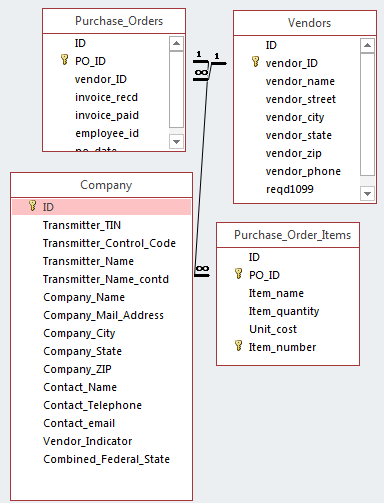
As with other report types, go to the Argos Explorer, right-click on the DataBlock to be used for this report, then select New Report.
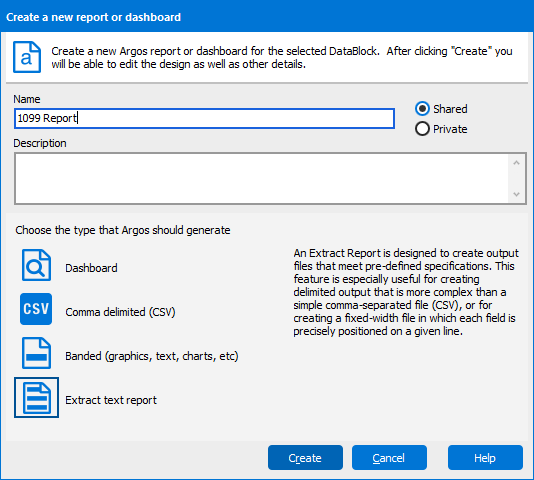
Give the report a name and description, click Extract text report, then the Create button.
You can add additional filters or sort the data that comes from the Report Query by clicking the Filters and Sort tabs shown in the figure below. Refer to the Filters and Sort section in this guide for an explanation of this feature is used when creating CSV reports. This feature is also available to Banded and Extract Reports.
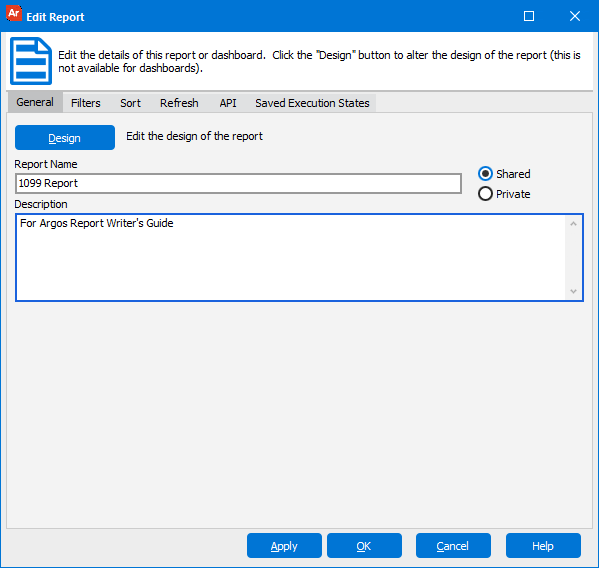
Click the Design button to launch the Extract Report Editor.