FormFusion Interface
After logging in to FormFusion, you will see the FormFusion user interface:
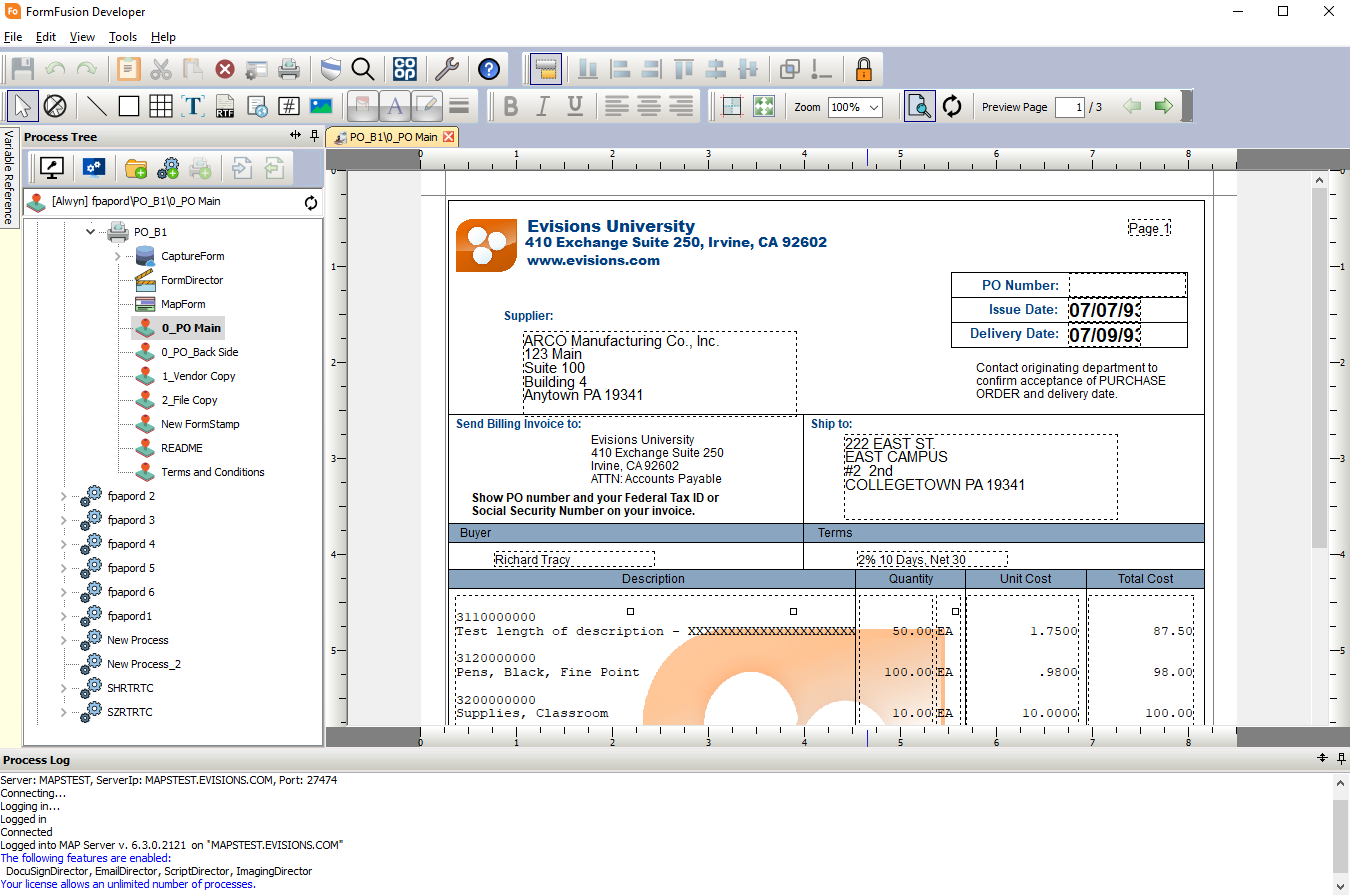
The FormFusion user interface contains several different areas:
- Toolbars - At the top of the screen are one or more toolbars, depending on the type of FormFusion object you are working with. The screen-specific toolbars are discussed in the sections for each component.
- Process Tree - The Process Tree appears on the left and displays all objects in FormFusion, sorted hierarchically by environment, process type, and print parameter (template). Double click on an item in the process tree to open it for editing.
- Design Area - The large pane in the middle of FormFusion displays a tab for each currently-open component. In the screenshot above, we are editing a FormStamp to design the layout of a template. The design area is empty until you open a template component to work on.
- Process Log - A scrolling text log at the bottom of FormFusion. The process log contains informative status messages such as connection status, enabled licenses, and any error messages that occur as a result of an action. The process log also contains debug information when doing a test print of a template.
- Variable Reference - The Variable Reference pane is collapsed by default. It contains a list of available variables (template variables as well as FormFusion system variables) that can be used when creating your template. To open the Variable Reference pane, hover over the sideways "Variable Reference" tab in the upper left, or select Variable Reference in the View menu.
Tip: The Variable Reference, Process Tree, and Process Log areas can be pinned or unpinned by clicking the pin icon on the upper right of the pane, or by toggling the pane in the View menu. Unpinning provides more room for you to work on your templates. When an area is unpinned, you can temporarily expand it by hovering over the edge of the collapsed region.
Main Toolbar
The main toolbar in FormFusion contains actions that are available throughout FormFusion, as well as links to external support resources.



.png)


Tip: You can rearrange the toolbars at the top of FormFusion by clicking and dragging on the two vertical lines on the far left of each toolbar, and dragging them to the desired location.
See also:
- Logging In
- Change Password
- The Process Tree
- Security and Permissions
- Exporting and Importing FormFusion Templates
- The CO-OP User Community Share
- Working with Environments
- Working with Folders
- Working with Processes
- Working with Print Parameters
- Print Parameter Properties
- Variables
- Test Print Template
- Saving Your Data