Import/Update Product License
Go to the License screen in MAPS. If you are a new Evisions client, you will have been supplied with a license file to import. This is generally emailed to the person who submitted the purchase order. Please open a case if you require assistance locating your license file.
Click the Read from File button to browse for the file:
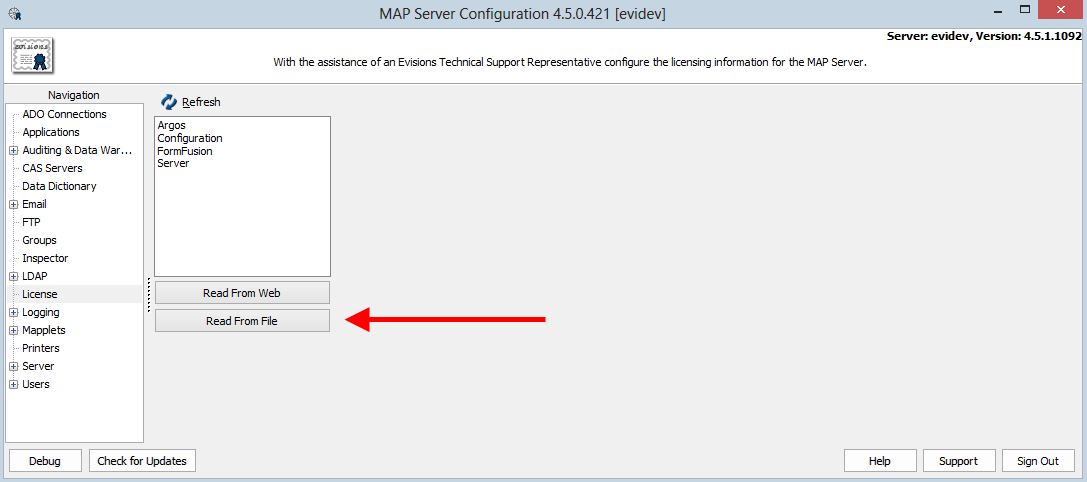
If you have other MAPS applications, you can use the Check for Updates button instead to retrieve your updated license file from Evisions’ servers. You could also click Read from Web on the License screen to download the new license file.
Whenever a new application is added to your license, you will be prompted to download and install the necessary application files. Click Yes to proceed, then wait for the IntelleCheck files to finish downloading.
When the installation has finished, you will see that IntelleCheck has been added to the list of products on the License screen. Selecting IntelleCheck in the list displays detailed license information, including license information for any of the optional modules.
To confirm that IntelleCheck has been installed, verify that you see the IntelleCheck mapplet on the Mapplets screen, and the IntelleCheck client application on the Applications screen.