 button and giving the template a name. This will enable all of the fields and allow configuration.
To access the imaging menu of IntelleCheck, click the Imaging button in the Administration menu.
Create a new template by clicking the button and giving the template a name. This will enable all of the fields and allow configuration.
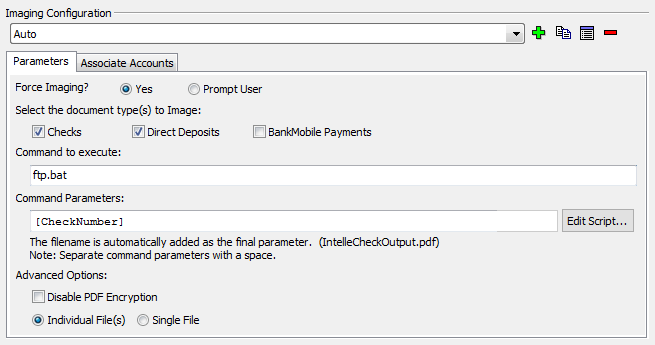
Selecting “Yes” to Force Imaging? will force imaging to happen automatically each time the proper payments are processed through Process Pending. Selecting “Prompt User” will allow the user to decide if the payments being processed should go to imaging.
Note: When reprocessing payments, the user will always be asked whether or not they wish to reprocess the imaging as well, regardless of this setting.
Select the Document Types(s) to Image allows any combination of checks, direct deposit advices, and BankMobile payments to be tied to the imaging layout. For example, a layout with only the “Checks” box selected for imaging would only image checks. If a user processes a batch of checks and direct deposits and selects yes for imaging, only the checks from this batch will be sent to imaging. The direct deposit advices will be ignored.
The Command to Execute is the name of a script the IT staff created. This script can ftp the file to a certain location or perform any other functionality the IT staff sees necessary. The filename entered here must reside in the Scripts directory on the server where MAPS is installed. By default, this is C:\Program Files\Evisions\MAPS\Service\Scripts
The Command Parameters field is used for any parameters for the script. Enter static variables here or access the IntelleCheck variables by clicking the ellipsis to the right of this box. A common setting is to create a script which will take a parameter in for the name of the new file, the CheckNumber, and add the [CheckNumber] variable here. If you want to use multiple command parameters, separate them with spaces. Note: Any command parameters entered when producing a single PDF file (see below) will reference the first payment in the batch.
By default, IntelleCheck will set security on the pdf files so they cannot be modified. Some imaging systems require this setting to be turned off in order for the pdfs to be added to the system. Check the Disable PDF Encryption box to turn off the encryption if problems are encountered.
Finally, choose whether you want to produce Individual Files or a Single File. If you choose Single File, each payment will appear on its own page inside a single PDF document.
After the parameters have been entered click the Associate Accounts tab. Select which account codes this layout should run against. This allows a separate imaging layout to be created for each account if necessary.