Adding an SSL Certificate
MAPS hosts the eLauncher landing page and the Argos Web Viewer on an integrated web server, which can be configured to use either HTTP or HTTPS depending on your institution's needs. Evisions highly recommends using HTTPS, which requires an SSL certificate for the server. Using HTTPS will improve security, as well as allow you to use the eLauncher's single sign-on features. HTTPS is also required in order to use the Argos Web Viewer.
Once you have obtained an SSL certificate, go to the HTTP File Server screen in MAPS and check the box to Use HTTPS Server.
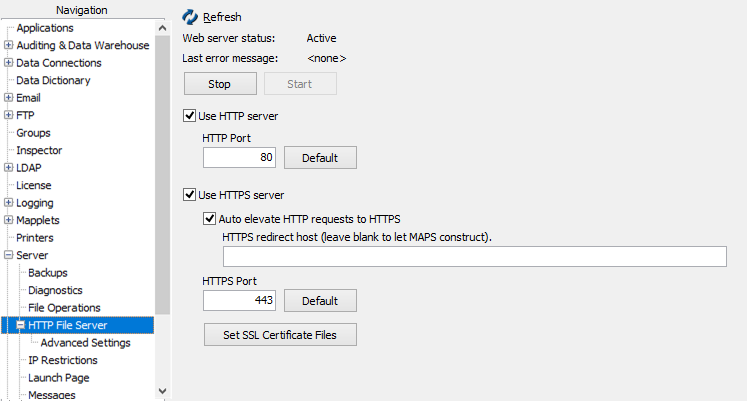
Use the Set SSL Certificate Files button to browse for the certificate files.
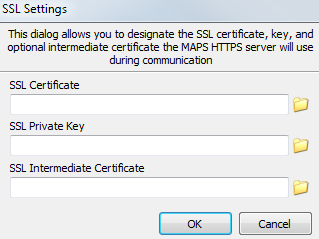
Click the folder icons to browse for the SSL certificate, private key, and intermediate certificate (if any), then select OK.
Verify that you are able to log in using HTTPS. Instead of the default URL of http://localhost:8080, you will use https://localhost to access the eLauncher. If you specify a port other than 443 for HTTPS, you will also need to include the port number in the URL.
Once you have confirmed that you are able to connect using HTTPS, you can enable the auto elevate HTTP requests to HTTPS feature. When this box is checked, users can type in a shorter HTTP URL and MAPS will automatically convert it to HTTPS.
Do not check the option to auto-elevate HTTP requests to HTTPS until you have tested logging in using HTTPS and have confirmed that you are able to launch MAPS. If there is a problem with the certificate files, you may not be able to connect through the eLauncher and will need to run MAPS Config manually to correct the problem.
For more detailed information on configuring the HTTP/HTTPS file server, refer to the HTTP File Server page in the MAPS Help.